Wednesday, 30 April 2025

What's new in Microsoft Intune: April 2025

Microsoft Intune's April 2025 release introduces several enhancements aimed at improving device management and security:

Custom Naming for Android Enterprise Devices - Administrators can now create custom naming templates during Android Enterprise device enrollment. This feature allows the inclusion of fixed text and device-specific variables (like serial numbers), promoting consistency and reducing post-enrollment renaming efforts.


Enhanced Controls for Apple Devices - Intune expands its Mobile Application Management (MAM) capabilities for unmanaged iOS devices. New Application Protection Policies (APP) now allow administrators to:
  • Block screen captures within the Apple Intelligence app.
  • Control access to AI-driven tools like Writing Tools and Genmojis. These controls help balance user productivity with data security.

Tuesday, 29 April 2025

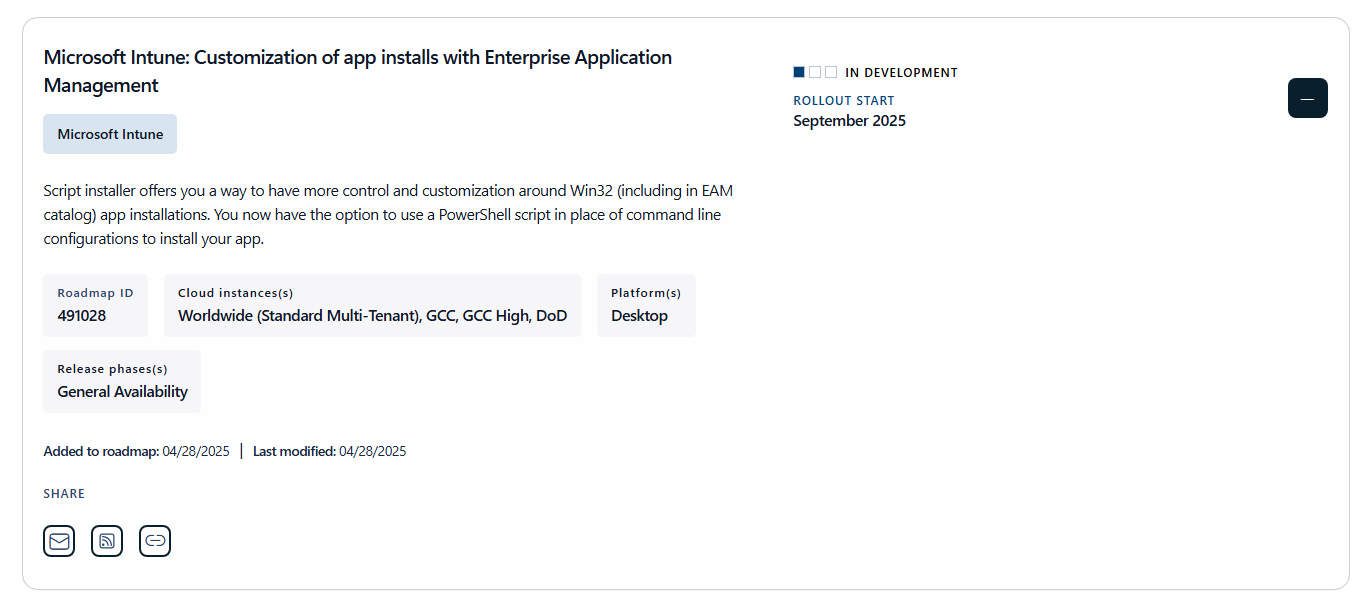
Microsoft Intune: Customization of app installs with Enterprise Application Management (Sep 2025 Rollout Update)

Script installer offers you a way to have more control and customization around Win32 (including in EAM catalog) app installations. You now have the option to use a PowerShell script in place of command line configurations to install your app.


Wednesday, 9 April 2025

Step-by-Step Guide to Changing the Microsoft 365 Apps Update Channel | Microsoft Configuration Manager


Managing the update channels for Microsoft 365 Apps is crucial for IT administrators aiming to control the deployment of new features and updates within their organizations. Microsoft Configuration Manager (ConfigMgr) offers a robust platform to facilitate this process, ensuring devices receive updates in alignment with organizational policies. This guide provides a comprehensive walkthrough on changing the Microsoft 365 Apps update channel using ConfigMgr.

Prerequisites

Before proceeding, ensure the following conditions are met:

  1. Configuration Manager Management: ConfigMgr should be configured to manage the "Click-to-Run" workload for Office applications.

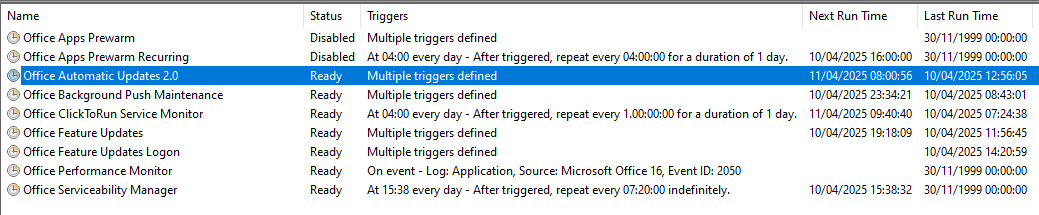
  2. Scheduled Task Activation: The "Office Automatic Update 2.0" scheduled task must be enabled on all client devices to allow automatic detection and application of updates.

  3. Update Deployment Configuration: ConfigMgr should be set up to deploy Microsoft 365 Apps updates. Detailed instructions are available in Microsoft's documentation on managing updates to Microsoft 365 Apps with Configuration Manager.

  4. Administrative Access: Ensure you have the necessary permissions to create applications and device collections within ConfigMgr.

Step-by-Step Guide to Changing the Update Channel

Step 1: Remove Conflicting Group Policies

If there are existing Group Policies that define the Office update channel, they will override settings configured via the Office Deployment Tool (ODT). To prevent conflicts, remove any such Group Policies before proceeding.

Step 2: Deploy Updates for the Target Channel

Create dynamic collections in ConfigMgr to deploy Microsoft 365 Apps updates corresponding to the desired channel. For guidance on setting up these collections, refer to Microsoft's article on switching to Monthly Enterprise Channel with Configuration Manager.

Step 3: Prepare the Office Deployment Tool (ODT)

  1. Download the Latest ODT: Obtain the newest version of the Office Deployment Tool from Download Office Deployment Tool from Official Microsoft Download Center

  2. Extract ODT Files: After downloading, extract the contents of the ODT package. Retain only the setup.exe file and remove other files to avoid confusion.

  3. Create Configuration XML: Craft a configuration XML file (e.g., Configure.xml) specifying the desired update channel. Save this XML in the same directory as setup.exe.

    • For Monthly Enterprise Channel:

      xml
      <Configuration>
      <Updates Channel="MonthlyEnterprise" /> </Configuration>
    • For Current Channel:

      xml
      <Configuration> <Updates Channel="Current" /> </Configuration>

Step 4: Develop a Deployment Script

Create a PowerShell script to automate the channel change process. The script should execute the following actions:

  1. Run ODT with the Configuration XML: This updates the CDNBaseUrl registry key to reflect the new channel.Remove Update Detection Timestamp: Delete the UpdateDetectionLastRunTime registry key to prompt immediate detection of the new policy.

  2. Trigger Scheduled Tasks and ConfigMgr Actions: Initiate the "Office Automatic Updates 2.0" scheduled task and trigger ConfigMgr actions like Hardware Inventory and Software Update Deployment Evaluation.

    Sample PowerShell Script:

    Start-Process -FilePath .\Setup.exe -ArgumentList "/configure .\Configure.xml" -Wait
    Remove-ItemProperty -Path HKLM:\software\Microsoft\Office\ClickToRun\Updates -Name UpdateDetectionLastRunTime -Force Get-ScheduledTask -TaskName "Office Automatic Updates*" | Start-ScheduledTask # Run Hardware Inventory Invoke-WMIMethod -ComputerName $env:COMPUTERNAME -Namespace root\ccm -Class SMS_CLIENT -Name TriggerSchedule “{00000000-0000-0000-0000-000000000001}” # Software Update Deployment Cycle Invoke-WMIMethod -ComputerName $env:COMPUTERNAME -Namespace root\ccm -Class SMS_CLIENT -Name TriggerSchedule “{00000000-0000-0000-0000-000000000108}” # Software Update Deployment Evaluation Cycle Invoke-WMIMethod -ComputerName $env:COMPUTERNAME -Namespace root\ccm -Class SMS_CLIENT -Name TriggerSchedule “{00000000-0000-0000-0000-000000000114}”


Step 5: Create and Deploy the Application in ConfigMgr

  1. Application Creation: In ConfigMgr, create a new application that utilizes the prepared PowerShell script for installation.

  2. Deployment: Deploy this application to the device collection targeted for the channel change.

Step 6: Verification

After deployment, verify the update channel change by:

  • Registry Inspection: Check the UpdateChannel and UpdateChannelChanged values in the HKLM:\SOFTWARE\Microsoft\Office\ClickToRun\Configuration registry path.

  • Office Application: Open any Office application, navigate to the Account menu, and confirm the displayed update channel.

Note: If the Office version remains the same across channels during the transition, the channel description in the Office application may not immediately reflect the change.

By meticulously following these steps, IT administrators can effectively manage and change the Microsoft 365 Apps update channels using Microsoft Configuration Manager, ensuring that devices within the organization receive updates in accordance with specified policies.

Tuesday, 8 April 2025

How to enable Windows Recovery Environment (WinRE) on Windows 11 and 10


The Windows Recovery Environment (WinRE) is an essential feature in Windows 11 and Windows 10, providing tools like automatic repair, system reset, and command prompt access to troubleshoot and resolve system issues. While WinRE is typically enabled by default, there are scenarios where it might be disabled, either intentionally or due to system modifications. This guide will walk you through the steps to enable or disable WinRE on your Windows device.

How to Enable Windows Recovery Environment (WinRE)

If you find that WinRE is disabled on your system, you can enable it using the Command Prompt with administrative privileges. Here's how:​

  1. Open Command Prompt as Administrator:

    • Click on the Start menu.

    • Type "Command Prompt" in the search bar.

    • Right-click on the Command Prompt app and select Run as administrator.

  2. Check the Status of WinRE:

    • In the Command Prompt window, type the following command and press Enter: reagentc /info

    • This command displays the current status of WinRE. Look for the "Windows RE status" line to see if it's enabled or disabled.

  3. Enable WinRE:

    • To enable WinRE, type the following command and press Enter: reagentc /enable

    • After executing this command, you should see a confirmation message indicating that WinRE has been enabled.​

  4. Verify WinRE is Enabled:

    • To confirm that WinRE is now enabled, you can re-run the reagentc /info command. The "Windows RE status" should now display as "Enabled".​

Once enabled, you can access WinRE by restarting your computer and pressing the appropriate key (often F8) during boot, or by navigating through the Settings app under Update & Security > Recovery > Advanced startup.​

How to Disable Windows Recovery Environment (WinRE)

If, for security or administrative reasons, you need to disable WinRE, follow these steps:​

  1. Open Command Prompt as Administrator:

    • Click on the Start menu.​

    • Type Command Prompt in the search bar.​

    • Right-click on the Command Prompt app and select Run as administrator.​

  2. Check the Status of WinRE:

    • In the Command Prompt window, type the following command and press Enter:​ reagentc /info

    • This will show the current status of WinRE.​

  3. Disable WinRE:

    • To disable WinRE, type the following command and press Enter:​ reagentc /disable

    • You should receive a confirmation message indicating that WinRE has been disabled.​

  4. Verify WinRE is Disabled:

    • To ensure that WinRE is disabled, re-run the reagentc /info command. The "Windows RE status" should now display as "Disabled".​

Disabling WinRE will prevent access to the recovery tools during boot, so ensure that this action aligns with your system management policies.​

By managing the state of the Windows Recovery Environment appropriately, you can maintain control over the troubleshooting tools available on your Windows 11 or Windows 10 system, ensuring they align with your usage and security requirements.

Troubleshooting Windows Feature updates in Microsoft Intune


Managing Windows feature updates through Microsoft Intune is crucial for maintaining device security and performance. However, administrators may encounter challenges during deployment. This guide outlines essential troubleshooting steps to address common issues with feature update policies in Intune.

Prerequisites for Feature Update Deployment

Before deploying feature updates, ensure the following prerequisites are met:

  • Licensing Requirements: Devices must have appropriate licenses that include access to the Windows Update for Business deployment service, such as:

    • Windows 10/11 Enterprise E3 or E5 (included in Microsoft 365 F3, E3, or E5)

    • Windows 10/11 Education A3 or A5 (included in Microsoft 365 A3 or A5)

    • Windows Virtual Desktop Access E3 or E5

    • Microsoft 365 Business Premium

    These licenses enable features like gradual rollout and optional feature updates.

  • Telemetry Configuration: Deploy a device restriction policy to all targeted devices, setting the "Share usage data" option to "Required." This ensures accurate reporting and telemetry.

  • Diagnostic Data Collection: Configure diagnostic data collection tenant-wide in the Intune admin center under Tenant administration > Connectors and tokens > Windows data. Proper configuration is vital for accurate feature update reporting.

  • Service Status:

    • Microsoft Account Sign-in Assistant: Ensure this service is not disabled; it should be set to "Manual" by default.

    • Connected User Experiences and Telemetry: Confirm this service is set to "Automatic" and is running.

  • Supported Windows Versions: Devices should be running supported editions such as Professional, Enterprise, or Education.

  • Network Connectivity: Verify that devices can access necessary Intune and Windows Update endpoints.

Configuring Update Rings with Feature Update Policies

When deploying update rings alongside feature update policies, consider the following:

  • Feature Update Deferral Period: Set this to '0' days to avoid delaying feature updates.

  • Upgrade to Latest Windows 11 Release: If enabled, eligible Windows 10 devices will upgrade to the latest Windows 11 feature update, potentially overriding specific feature update policies.

Common Troubleshooting Steps

If devices are not receiving or installing feature updates as expected:

  1. Policy Assignment Verification: Ensure that the feature update policy is correctly assigned to the intended device groups.

  2. Update Compliance Monitoring: Utilize Intune's reporting features to monitor update compliance and identify devices that are not updating.

  3. Windows Update Service Checks: Confirm that the Windows Update service is running and not disabled on the devices.

  4. Registry Configuration: Verify that registry settings align with the deployed policies.

  5. Safeguard Holds: Be aware of any safeguard holds that might prevent the update from being offered to certain devices due to known compatibility issues.

  6. Manual Update Attempts: Attempt to manually initiate the update on a device to determine if the issue is with policy deployment or the update process itself.

By systematically verifying prerequisites, configuring policies correctly, and utilizing Intune's monitoring tools, administrators can effectively troubleshoot and resolve issues related to Windows feature updates in Microsoft Intune.

Strengthening Email Ecosystem: Outlook’s New Requirements for High‐Volume Senders

In an era where email remains a cornerstone of both personal and business communication, ensuring the security and reliability of email ecosystems is paramount. To bolster trust and protect users, Outlook.com is introducing new requirements for domains that send over 5,000 emails per day. These measures aim to enhance email authentication and reduce malicious activities such as spoofing, phishing, and spam.

New Authentication Requirements for High-Volume Senders

Effective May 5, 2025, domains dispatching more than 5,000 emails daily to Outlook.com addresses must comply with the following authentication protocols:

  1. Sender Policy Framework (SPF):

    • Ensure that your domain's DNS records accurately list all authorized IP addresses and hosts permitted to send emails on behalf of your domain.

    • SPF records must pass validation to confirm the legitimacy of the sending source.

  2. DomainKeys Identified Mail (DKIM):

    • Implement DKIM to attach a digital signature to your emails, verifying that the message content remains unaltered during transit.

    • DKIM signatures must pass verification to authenticate the integrity and origin of the emails.

  3. Domain-based Message Authentication, Reporting, and Conformance (DMARC):

    • Configure a DMARC policy with at least a p=none setting, aligning with either SPF or DKIM (preferably both).

    • DMARC enables domain owners to specify how unauthenticated messages should be handled, providing reports on email authentication status.

For detailed guidance on setting up these authentication methods, refer to Microsoft's documentation on email authentication.

Additional Email Hygiene Best Practices

Beyond authentication, high-volume senders are encouraged to adopt the following practices to maintain email quality and user trust:

  • Valid P2 (Primary) Sender Addresses:

    • Ensure that the "From" or "Reply-To" addresses are valid, accurately reflect the sending domain, and are capable of receiving replies.

  • Functional Unsubscribe Mechanisms:

    • Provide clear and accessible options for recipients to opt out of future communications, especially in marketing or bulk emails.

  • Regular List Maintenance and Bounce Management:

    • Periodically cleanse mailing lists to remove invalid or inactive addresses, thereby reducing bounce rates and spam complaints.

  • Transparent Mailing Practices:

    • Use honest subject lines, avoid misleading headers, and ensure that all recipients have explicitly consented to receive your emails.

Adhering to these practices not only enhances deliverability but also fortifies the sender's reputation within the email ecosystem.

Enforcement Timeline and Actions

Starting May 5, 2025, Outlook.com will begin routing emails from non-compliant high-volume senders to recipients' Junk folders. This initial phase serves as a grace period, allowing senders to address and rectify any authentication issues. Future enforcement actions may escalate to outright rejection of non-compliant emails, with specific dates to be announced subsequently.

Outlook.com reserves the right to take negative actions, including filtering or blocking, against senders who fail to meet these standards, particularly in cases of significant authentication breaches or poor email hygiene.

Steps to Prepare

To align with these new requirements and ensure uninterrupted email delivery:

  1. Audit Your DNS Records:

    • Review and update your SPF, DKIM, and DMARC records to ensure they meet the specified standards.

  2. Monitor Authentication Headers:

    • Regularly inspect email headers to verify authentication status. Guidance on viewing and interpreting these headers is available through Microsoft's support resources.

  3. Stay Updated:

    • Keep abreast of further announcements regarding enforcement timelines and additional requirements by following official communications from Outlook.com.

By proactively implementing these measures, high-volume senders can contribute to a more secure and trustworthy email environment, benefiting both senders and recipients alike.

Must-Know CMD Commands for System Administrators

📌 User & Group Management

🔹 Check all users: net user

🔹 Check user details: net user username

🔹 Add a new user: net user NewUser Password123 /add

🔹 Add user to local admin group: net localgroup Administrators NewUser /add

🔹 Remove user from a group: net localgroup Administrators NewUser /delete

🔹 Delete a user account: net user NewUser /delete


📌 System Information & Performance

🔹 Check system info: systeminfo

🔹 View running processes: tasklist

🔹 Kill a process by name: taskkill /IM processname.exe /F

🔹 Check disk usage: wmic logicaldisk get name, freespace, size, description

🔹 Check RAM details: wmic MEMORYCHIP get BankLabel, Capacity, Speed

🔹 Check network configuration:ipconfig /all

🔹 Flush DNS cache: ipconfig /flushdns


📌 Network & Remote Management

🔹 Ping a server: ping google.com

🔹 Check open ports: netstat -an | find "LISTEN"

🔹 Test remote connection (RDP): mstsc /v:RemotePCName

🔹 Enable RDP remotely: reg add "HKLM\SYSTEM\CurrentControlSet\Control\Terminal Server" /v fDenyTSConnections /t REG_DWORD /d 0 /f


📌 File & Disk Management

🔹 List all drives: wmic logicaldisk get name

🔹 Check disk health (SMART): wmic diskdrive get status

🔹 Check file size in a folder: dir /s /a C:\YourFolder

🔹 Find large files (over 1GB): forfiles /S /M *.* /C "cmd /c if @fsize GEQ 1073741824 echo @path @fsize"


📌 Active Directory & Domain Management

🔹 Check domain details: nltest /dsgetdc:yourdomain.com

🔹 List all domain users: net user /domain

🔹 Force Group Policy update: gpupdate /force

🔹 Check AD replication status: repadmin /replsummary


📌 Security & Event Logs

🔹 Check failed login attempts: wevtutil qe Security /c:10 /f:text /q:"*[System[(EventID=4625)]]"

🔹 Enable BitLocker on drive C: manage-bde -on C: -RecoveryPassword

🔹 Check Windows Defender status: sc query windefend


🚀 Why Every System Admin Should Use These Commands?


✅ Saves time – No need to navigate through GUI

✅ Troubleshoot quickly – Identify & fix issues in seconds

✅ More control – Perform advanced tasks efficiently

The future of Mac device management is with Microsoft Intune

Managing Mac devices in the enterprise has traditionally been a complex task, often requiring multiple tools and platforms. However, Microsoft Intune is transforming this landscape by offering a unified, efficient, and secure solution for macOS management.

Key Advantages of Using Microsoft Intune for Mac Management:

  • Unified Device Management: Intune allows organizations to manage all devices—Windows, macOS, iOS, and Android—through a single platform, simplifying administration and ensuring consistent policies across different operating systems.

  • Enhanced Security and Compliance: With robust security features like encryption enforcement, password requirements, and remote wipe capabilities, Intune helps protect corporate data on Mac devices. Administrators can enforce compliance policies to ensure devices adhere to organizational standards.

  • Seamless Application Deployment: Intune simplifies the deployment and management of applications on Mac devices, supporting both DMG and PKG app package types. This ensures users have access to necessary software without complex procedures. 

  • Declarative Device Management (DDM): Intune supports Apple's DDM protocol, enhancing policy delivery performance and enabling more robust device compliance and app inventory capabilities.

  • Integration with Microsoft Ecosystem: Intune integrates seamlessly with Microsoft Entra ID (formerly Azure Active Directory) and other Microsoft services, providing a cohesive and secure environment for device management.

By leveraging Microsoft Intune, organizations can streamline their Mac management processes, enhance security, and provide a better experience for both IT administrators and end-users.

For a more in-depth look at how Intune is revolutionizing macOS management, check out this Microsoft Mechanics podcast:

Note: This post is inspired by insights from the Microsoft Tech Community blog on macOS management with Intune.

Thursday, 5 October 2023

[Solved] 0x64C(1612) : The installation source for this product is not available. Verify that the source exists and that you can access it.

When attempting an upgrade to newer version, uninstalling or repair, you may receive an error with an exit code of 1603, 1612,  0x8024002D (-2145124307), 0X80240022 (-2145124318).

The error code 1612 is the most useful in determining the underlying reason. When you run CMTrace.exe, it will deliver the results of an error lookup. "The installation source for this product is not available. Verify that the source exists and that you can access it."

Wednesday, 4 October 2023

Free Microsoft Azure Courses - Udemy

Here is a collection of free Microsoft azure courses on Udemy:
  1. AZ-900 Microsoft Azure Fundamentals - Udemy Course Link
    • Microsoft Azure is one of the best cloud and currently leading in the market. This course is first step to get familiar with Microsoft Azure Cloud for everyone.
    • If you are willing to learn Microsoft Azure Cloud and want to learn it with step be step hands on, then this course is for you.

Friday, 29 September 2023

Learn Jenkins | For Beginners | DevOps | Software Developers


Jenkins is an open-source automation server. It facilitates in the automation of software development components such as building, testing, and deploying, enabling for continuous integration and delivery. It is a server-side programme that runs on servlet containers such as Apache Tomcat. Below are some of the free training videos to learn and share:

Learn
Learn and Practice
  1. Jenkins Tutorial – How to Deploy a Test Server with Docker + Linux (Full Course)
  2. Live DevOps Project for Resume - Jenkins CICD with GitHub Integration
  3. JENKINS PIPELINE FROM SCRATCH | Declerative | Checkout and Build | REAL-TIME
  4. CICD Pipeline Using Git-Hub, Jenkins, Docker and Kubernetes on AWS and GCP
  5. CICD pipeline for Java application to deploy on kubernetes cluster using Jenkins | Devops Project
  6. CI CD Pipeline Using Jenkins | Continuous Integration and Deployment | Intellipaat
  7. Mega Real-time End to End DevOps CI/CD Project | Git | Jenkins | Nexus | SonarQube | HandsOn Lab - I
  8. DevOps Project Part-1 | Setting up CI-CD Pipeline for an E-Commerce App | DevOps Training | Edureka
  9. DevOps Project Part-2 | Setting up CI-CD Pipeline for an E-Commerce App | DevOps Training | Edureka
  10. Jenkins CI/CD Workflow Implementation with Real-time Project Part 1
  11. DevOps-Projects - YouTube Playlist

Learn and share with your friends!

Thursday, 28 September 2023

2023 October - Free Cybersecurity Trainings

Free Cybersecurity Courses
  1. Certified in Cybersecurity℠ - CC by ICS2: https://www.isc2.org/Certifications/CC
  2. Cybersecurity Essentials by Cisco Academy: https://www.netacad.com/courses/cybersecurity/cybersecurity-essentials
  3. Networking Essentials by Cisco Academy: https://www.netacad.com/courses/networking/networking-essentials
  4. Intro to Information Security by Udacity: https://www.udacity.com/course/intro-to-information-security--ud459
  5. Network Security by Udacity: https://www.udacity.com/course/network-security--ud199
  6. NSE 1,2 & 3 by Fortinet: https://training.fortinet.com/
  7. Information Security by OpenLearn: https://www.open.edu/openlearn/science-maths-technology/information-security
  8. Network Security by OpenLearn: https://www.open.edu/openlearn/digital-computing/network-security
  9. Risk Management by Open Learn: https://www.open.edu/openlearn/money-business/risk-management
  10. Introduction to Cybersecurity by Cisco Academy: https://www.netacad.com/courses/cybersecurity/introduction-cybersecurity
  11. CCNA Security Courses by various platforms: https://digitaldefynd.com/best-network-security-courses/?redirccnasecurity/
  12. Network Defense Essentials (NDE) by EC Council: https://codered.eccouncil.org/course/network-defense-essentials
  13. Ethical Hacking Essentials (EHE) by EC Council: https://codered.eccouncil.org/course/ethical-hacking-essentials
  14. Digital Forensics Essentials (DFE) by EC Council: https://codered.eccouncil.org/course/digital-forensics-essentials
  15. Dark Web, Anonymity, and Cryptocurrency by EC Council: https://codered.eccouncil.org/course/introduction-to-dark-web-anonymity-and-cryptocurrency
  16. Digital Forensics by Open Learn: https://www.open.edu/openlearn/science-maths-technology/digital-forensics
  17. AWS Cloud Certifications (Cybersecurity) : https://explore.skillbuilder.aws/learn/signin
  18. Microsoft Learn for Azure: https://learn.microsoft.com/en-us/training/azure/
  19. Google Cloud Training: https://cloud.google.com/learn/training
  20. Android Bug Bounty Hunting: Hunt Like a Rat: https://codered.eccouncil.org/course/android-bug-bounty-hunting-hunt-like-a-rat
  21. Vulnerability Management: https://www.qualys.com/training/
  22. Software Security: https://www.classcentral.com/course/software-security-1728
  23. Developing Secure Software: https://training.linuxfoundation.org/training/developing-secure-software-lfd121/
  24. PortSwigger Web Hacking: https://portswigger.net/web-security
  25. RedTeaming: https://taggartinstitute.org/p/responsible-red-teaming
  26. Splunk: https://www.splunk.com/en_us/training/free-courses/overview.html
  27. Secure Software Development: https://training.linuxfoundation.org/training/developing-secure-software-lfd121/
  28. Maryland Software Security: Free Course: Software Security from University of Maryland, College Park | Class Central
  29. Stanford Cyber Resiliency: https://www.classcentral.com/classroom/youtube-stanford-seminar-engineering-cyber-resiliency-a-pragmatic-approach-110018
  30. Cyber Threat Intelligience: Cyber Threat Intelligence 101 Course (arcx.io)

Wednesday, 20 September 2023

[Solved] Add-WindowsCapability failed. Error code = 0x800f0954

In this post, we'll look at how to fix the 0x800f0954 error that may appear when installing optional Windows features such as RSAT tools, Language pack features, or any other Windows features.

Errors:

1. PowerShell Add-WindowsCapability Error:

  Add-WindowsCapability : Add-WindowsCapability failed. Error code = 0x800f0954
  At line:6 char:13
  + Add-WindowsCapability -Online -Name $langFeature
  + ~~~~~~~~~~~~~~~~~~~~~~~~~~~~~~~~~~~~~~~~~~~~~~~~
      + CategoryInfo : NotSpecified: (:) [Add-WindowsCapability], COMException
      + FullyQualifiedErrorId : Microsoft.Dism.Commands.AddWindowsCapabilityCommand


2. DISM Package Manager Error:

DISM Package Manager: PID=2628 TID=4325 Error in operation: (null) (CBS HRESULT=0x800f0954) - CCbsConUIHandler::Error 
DISM DISM Package Manager: PID=2628 TID=4561 Failed finalizing changes. - CDISMPackageManager::Internal_Finalize(hr:0x800f0954) 
DISM Package Manager: PID=2628 TID=4561 Failed processing package changes with session options - CDISMPackageManager::ProcessChangesWithOptions(hr:0x800f0954) 
DISM Package Manager: PID=2628 TID=4561 Failed to install capability. - CPackageManagerCLIHandler::ProcessCmdLine_AddCapability(hr:0x800f0954) 
DISM Package Manager: PID=2628 TID=4561 Failed while processing command add-capability. - CPackageManagerCLIHandler::ExecuteCmdLine(hr:0x800f0954) 2
DISM Package Manager processed the command line but failed. HRESULT=800F0954


Solution:

To fix 0x800f0954 error, please follow one below solutions and retry the installation.

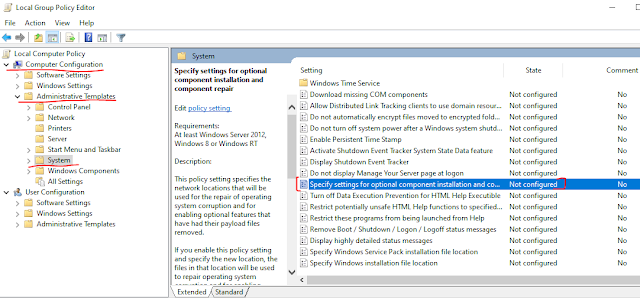
Method 1: Local Group Policy
  • Right click on start and click Run then type gpedit.msc and hit enter.
  • Navigate to Computer Configuration > Administrative Templates > System.
  • Scroll down to find "Specify settings for optional component installation and component repair" and open the settings.
  • And select Enabled and also check the checkbox "Download repair content and optional features directly from Windows Updates instead of Windows Server Updates Services (WSUS)".
  • Go back to the PowerShell or Command Prompt window and run gpupdate /force
  • Finally rerun the Add-WindowsCapability in PowerShell or DISM command again to install the feature.


Method 2: Registry

Change WSUServer registry value to 0 and then run windows capability or DISM to directly download the components from internet. Use the following PowerShell script or use Registry GUI to do the change:


Set-ItemProperty -Path "HKLM:\SOFTWARE\Policies\Microsoft\Windows\WindowsUpdate\AU" -Name "UseWUServer" -Value 0
Restart-Service "Windows Update" -ErrorAction SilentlyContinue


Hopefully you have been able to fix the Add-WindowsCapability or DISM command failed 0x800f0954 error that so many of us have been running into.


Tuesday, 19 September 2023

Cybersecurity Technologies and Projects


Cybersecurity is the activity of defending a business's data or information against online criminals. Attackers are giving up the conventional or outdated techniques of getting data from customers as the world adjusts to the new reality. They are adjusting to new technologies and techniques that can be used to steal data electronically. Cyber attackers try to get into the network and launch an attack, while cyber defenders try to block or stop the attackers from accessing their data. This is a game of cat and mouse in the world of cyber security. But instead of using physical weapons, these conflicts make use of a variety of the greatest cyber security tools. The same tool can be used in both positive and bad ways.

The significance of cybersecurity can be understood through Mimecast's study. According to the research, there has been a 26% increase in ransomware, an 88% increase in email-based spoofing, and a 67% increase in impersonation fraud.

The following is a list of cybersecurity technologies and projects that could help in resolving modern security issues:

1. NETWORK ANALYSIS
  1. Wireshark: https://www.wireshark.org
  2. pfSense: https://www.pfsense.org
  3. Arkime: https://arkime.com
  4. Snort: https://www.snort.org
  5. Suricata: https://suricata.io/

2. OS ANALYSIS
  1. Helk: https://github.com/Cyb3rWard0g/HELK
  2. Volatility: https://github.com/volatilityfoundation/volatility/
  3. RegRipper: https://github.com/keydet89/RegRipper3.0
  4. OSSEC: https://www.ossec.net
  5. osquery: https://osquery.io

3. INCIDENT MANAGEMENT
  1. TheHive: https://thehive-project.org/
  2. GRR Rapid Response: https://github.com/google/grr

4. HONEYPOTS
  1. Kippo: https://github.com/desaster/kippo
  2. Cowrie: https://github.com/cowrie/cowrie
  3. Dockpot: https://github.com/eg-cert/dockpot
  4. HonSSH: https://github.com/tnich/honssh

5. THREAT INTELLIGENCE
  1. Misp: https://www.misp-project.org/
  2. MSTICPy: https://github.com/microsoft/msticpy
  3. Threatpost: https://threatpost.com/
  4. Dark Reading: https://www.darkreading.com/
6. EDR
  1. Cortex XDR: https://www.paloaltonetworks.es/resources/datasheets/cortex-xdr
  2. Cynet 360: https://www.cynet.com/platform/
  3. FortiEDR: https://www.fortinet.com/lat/products/endpoint-security/fortiedr
  4. Xcitium: https://www.xcitium.com/free-edr/
7. SIEM
  1. OSSIM: https://cybersecurity.att.com/products/ossim
  2. Splunk: https://www.splunk.com
  3. LogRhythm: https://logrhythm.com
  4. Wazuh: https://wazuh.com
  5. Qradar: https://www.ibm.com/community/qradar/ce/

Friday, 15 September 2023

PowerShell - Special Folders (System Folders)

In VBscript, there existed a concept known as Special Folders, for example, My Documents which could be accessed using the Shell. Application object and passing in a constant that applied to a certain folder. This is also possible using PowerShell.


$a = New-Object -ComObject Shell.Application
Get-ChildItem $a.NameSpace(0x21).Self.Path

The prior two lines of code can also be written as follows: 

Get-ChildItem ((New-Object -ComObject Shell.Application).Namespace(0x21).Self.Path)

Below is the list of special folders and its hex number, please do comment on this post if any of them is/are wrong:

Hex Number Folder Name
0x1 Internet Explorer
0x2 Programs
0x3 Control Panel
0x4 Printers and Faxes
0x5 My Documents
0x6 Favorites
0x7 Startup
0x8 My Recent Documents
0x9 SendTo
0xa Recycle Bin
0xb Start Menu
0xd My Music
0xe My Videos
0x10 Desktop
0x11 My Computer
0x12 My Network Places
0x13 NetHood
0x14 Fonts
0x15 Templates
0x16 All Users Start Menu
0x17 All Users Programs
0x18 All Users Startup
0x19 All Users Desktop
0x1a Application Data
0x1b PrintHood
0x1c Local Settings Application Data
0x20 Local Settings Temporary Internet Files
0x21 Cookies
0x22 Local Settings History
0x23 All Users Application Data
0x24 Windows
0x25 System32
0x26 Program Files
0x27 My Pictures
0x28 User Profile
0x2b Common Files
0x2e All Users Templates
0x2f Administrative Tools
0x31 Network Connections


You can also use the .NET way in PowerShell: 

[System.Environment]::GetFolderPath("<SpecialFolder>")
  • Desktop
  • Programs
  • Personal
  • MyDocuments
  • Favorites
  • Startup
  • Recent
  • SendTo
  • StartMenu
  • MyMusic
  • DesktopDirectory
  • MyComputer
  • Templates
  • ApplicationData
  • LocalApplicationData
  • InternetCache
  • Cookies
  • History
  • CommonApplicationData
  • System
  • ProgramFiles
  • MyPictures
  • CommonProgramFiles

Between the following are the possible Enumeration values and their associated numeric values, the VBScript version appears to have more alternatives than the .NET version:
  •  0  Desktop 
  •  2  Programs 
  •  5  Personal 
  •  6  Favourites 
  •  7  Startup 
  •  8  Recent 
  •  9  SendTo 
  •  11 StartMenu 
  •  13 MyMusic 
  •  16 DesktopDirectory 
  •  17 MyComputer 
  •  21 Templates 
  •  26 ApplicationData 
  •  28 LocalApplicationData 
  •  32 InternetCache 
  •  33 Cookies 
  •  34 History 
  •  35 CommonApplicationData 
  •  37 System 
  •  38 ProgramFiles 
  •  39 MyPictures 
  •  43 CommonProgramFiles

Various types of SQL Databases

Data Engineers work with numerous types of SQL databases. Today, I'd like to give some information about the various categories and their real-world uses.

Types of Databases


Relational Databases (RDBMS):

They excel in structured data management, which makes them an excellent choice for transactional systems such as e-commerce platforms. Examples are SQL Server, MySQL, PostgreSQL, OracleDB.

NoSQL Databases:

They are used in power applications such as social media platforms and IoT systems, and are ideal for managing enormous volumes of unstructured or semi-structured data. Examples are MongoDB, Cassandra, DynamoDB

Columnar Databases:

Columnar databases expertise is in performing analytical queries on massive datasets. They are an essential component of data warehousing for analytics-driven organisations. Examples are Amazon Redshift, Google BigQuery

Graph Databases:

Ideal for complicated relationship scenarios such as social networks, recommendation engines, and fraud detection systems. Examples are Neo4j, Amazon Neptune


Remember that SQL is the foundation of data-driven decision-making, and comprehending these database types offers up a world of data possibilities.

What's new in Microsoft Intune: April 2025

Microsoft Intune's April 2025 release introduces several enhancements aimed at improving device management and security: Custom Naming ...